customer location setup
Manage Customer Location1️⃣ OverviewThe Manage Customer Location module helps organizations define and manage multiple customer office locations.This feature is useful for:Managing…
Manage Customer Location
1️⃣ Overview
The Manage Customer Location module helps organizations define and manage multiple customer office locations.
This feature is useful for:
Managing branch offices
Tracking customer locations
Attendance/location-based operations
Remote office management
2️⃣ Navigation Path
Go to:
Customers → Customer Location

3️⃣ Create Customer Location
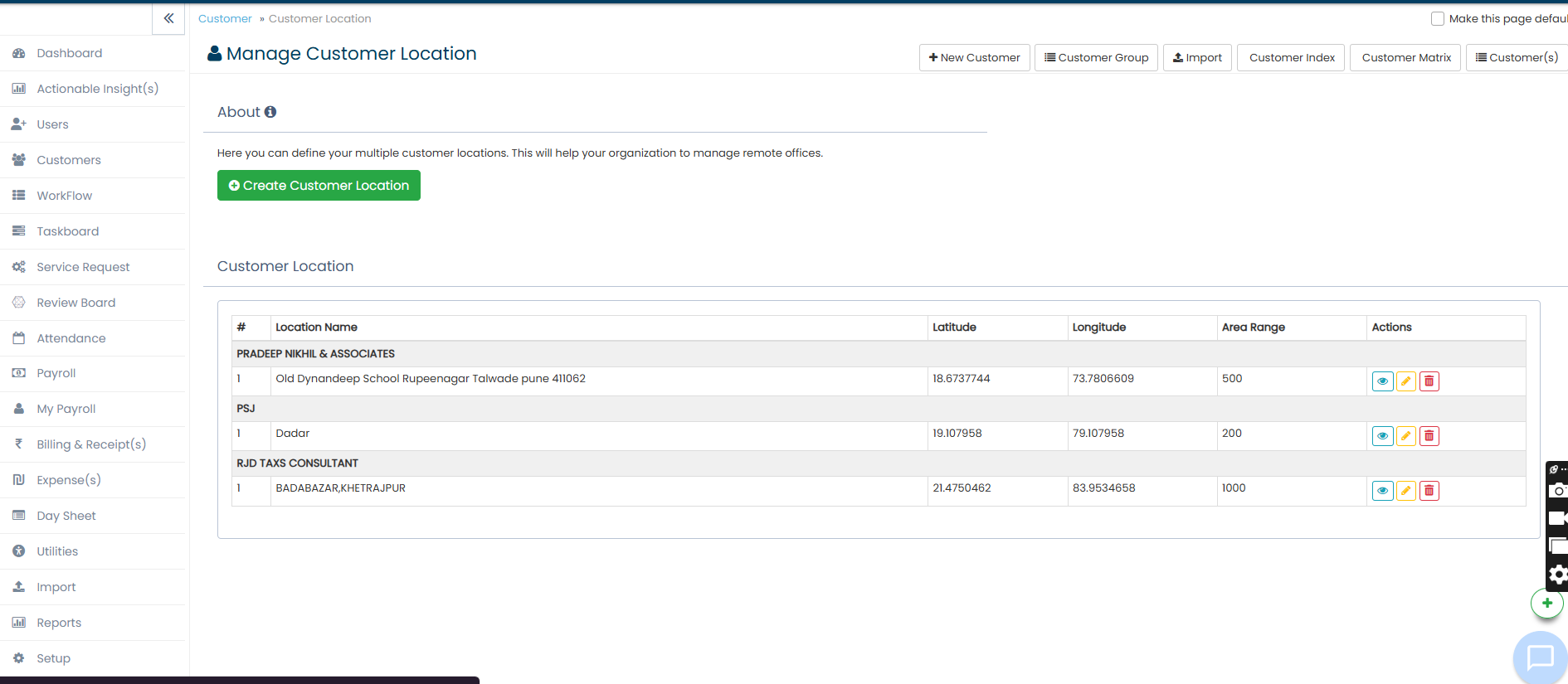
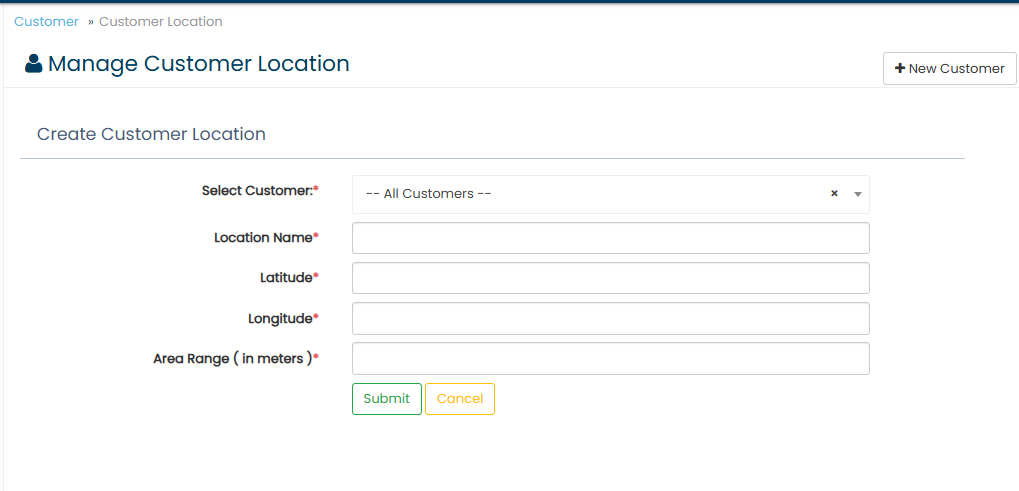
📌 Steps to Create New Location
Click on the green button:
➕ Create Customer LocationEnter the required details:
Customer Name
Location Name/Address
Latitude
Longitude
Area Range
Save the location.
Customer Location List
All created locations are displayed in the table.
🔹 Table Columns
Column | Description |
|---|---|
# | Serial Number |
Location Name | Customer office/location name |
Latitude | GPS latitude coordinate |
Longitude | GPS longitude coordinate |
Area Range | Allowed radius range |
Actions | View, Edit, Delete options |
5️⃣ Action Buttons
👁 View
Used to view customer location details.
✏ Edit
Used to update or modify location information.
🗑 Delete
Used to remove customer location from the system.
⚠ Deleting a location may affect attendance/location tracking features.
7️⃣ Important Notes
Latitude and Longitude should be accurate for proper location tracking.
Area Range defines the permitted radius for location validation.
Only authorized users should modify or delete customer locations.
Ensure correct customer selection before creating a location.
Updated 10 Oct 2026 · View on support.erpca.com