Document sharing
In Document Sharing, you can share a document or folder with any one team member.This feature allows you to provide controlled access to specific files or folders to individual tea…
In Document Sharing, you can share a document or folder with any one team member.
This feature allows you to provide controlled access to specific files or folders to individual team members as required.
Note - Only customized folders can be shared with resources.
System-generated folders cannot be shared and their permissions cannot be modified.
Please ensure that the document is placed inside a customized folder before attempting to share it.
Document Sharing & Cloud Integration Policy
If your account is integrated with external cloud storage platforms such as:
Google Drive
Microsoft OneDrive
Dropbox
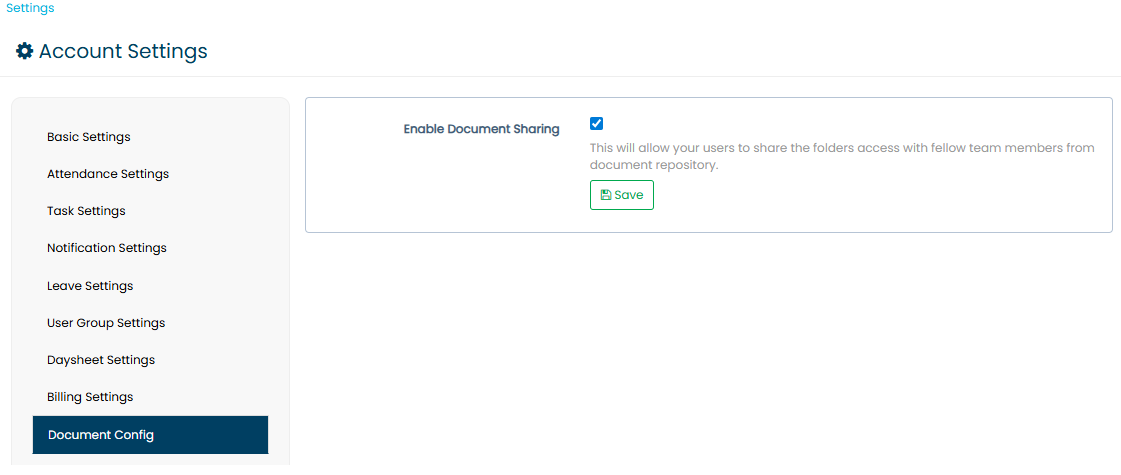
Then Document Sharing within the system will be disabled.
However, if cloud integration is not enabled, then the Document Sharing feature can be enabled, allowing you to share documents or folders with individual team members.
This ensures proper access control based on your storage integration settings.
Steps to Grant Document Access
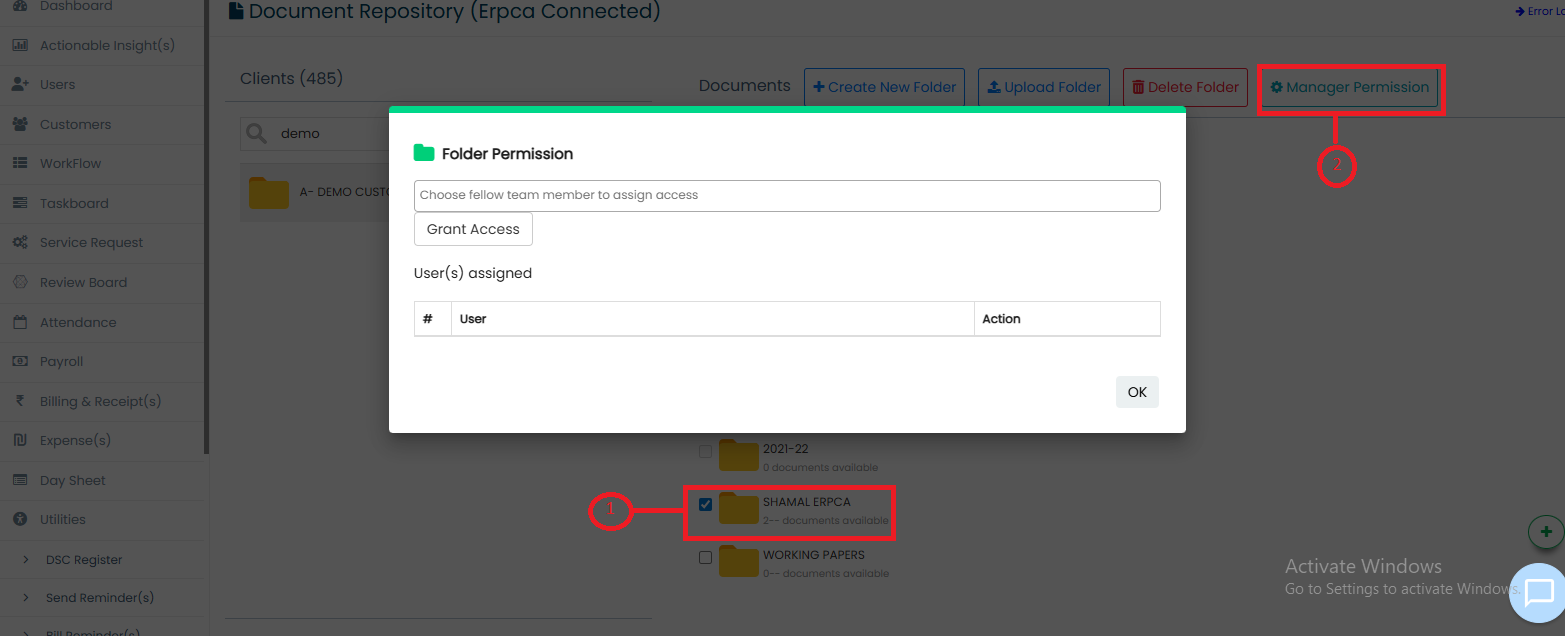
Open the Utilities section.
Click on Document Repository.
Select the required Folder / File.
Click on the Manage Permission button.
Select the required Resource(s).
Click on Grant Permission.
Once completed, the selected resource will have access to the chosen document or folder.
Updated 18 Feb 2026 · View on support.erpca.com