Front Desk
Front Desk – Visitor Check-InPurposeThe Front Desk section allows reception or authorized staff to register visitors when they arrive at the office.ProcedureLog in to the ERPCA por…
Front Desk – Visitor Check-In
Purpose
The Front Desk section allows reception or authorized staff to register visitors when they arrive at the office.
Procedure
Log in to the ERPCA portal using your credentials.
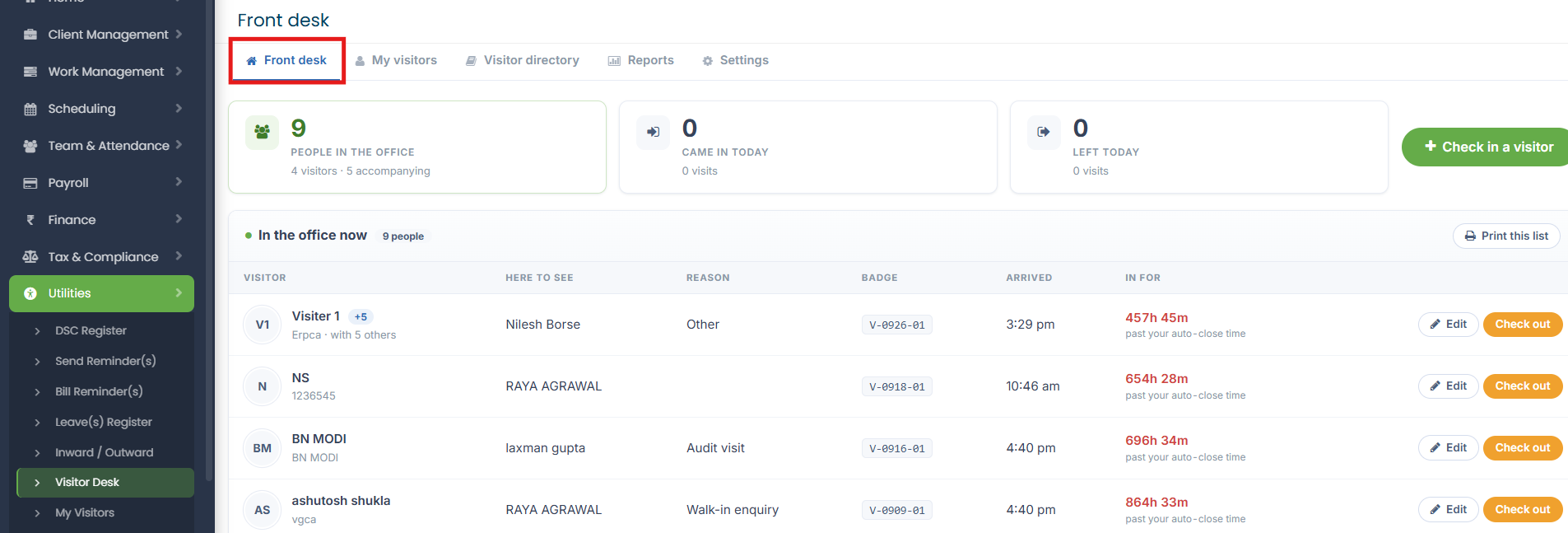
Navigate to the Utilites-Visitor Desk module.
Open Front Desk.
Review the dashboard and available visitor options.
Click Check In a Visitor to register a new visitor.
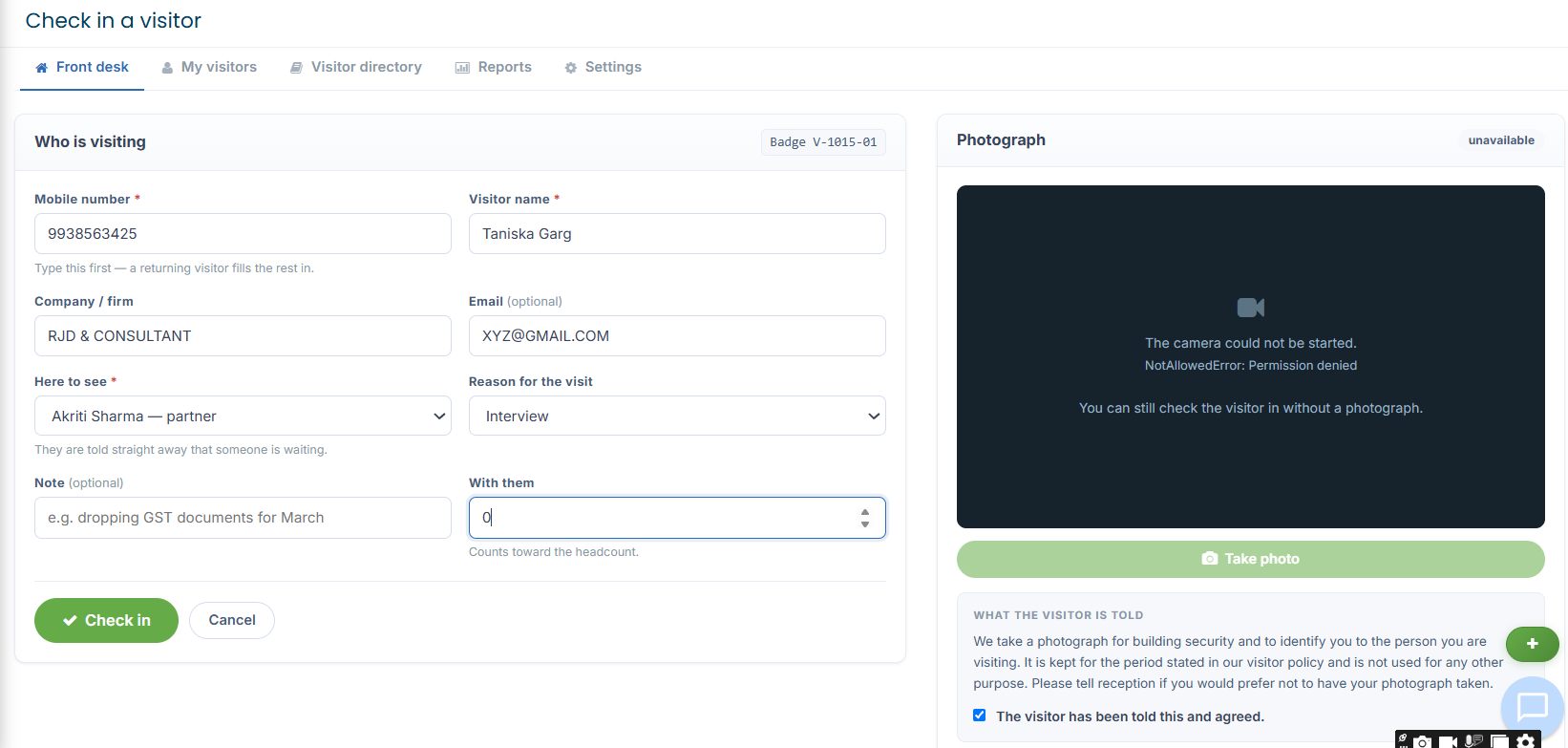
Enter the details requested in the registration form.
Review the entered information and submit the form using the available action button.
Visitor registration details
Enter the information displayed in the form, such as:
Visitor name and contact details
Person or employee to be visited
Purpose of the visit
Photograph, if required
Consent or other requested information
Visitor Check-Out
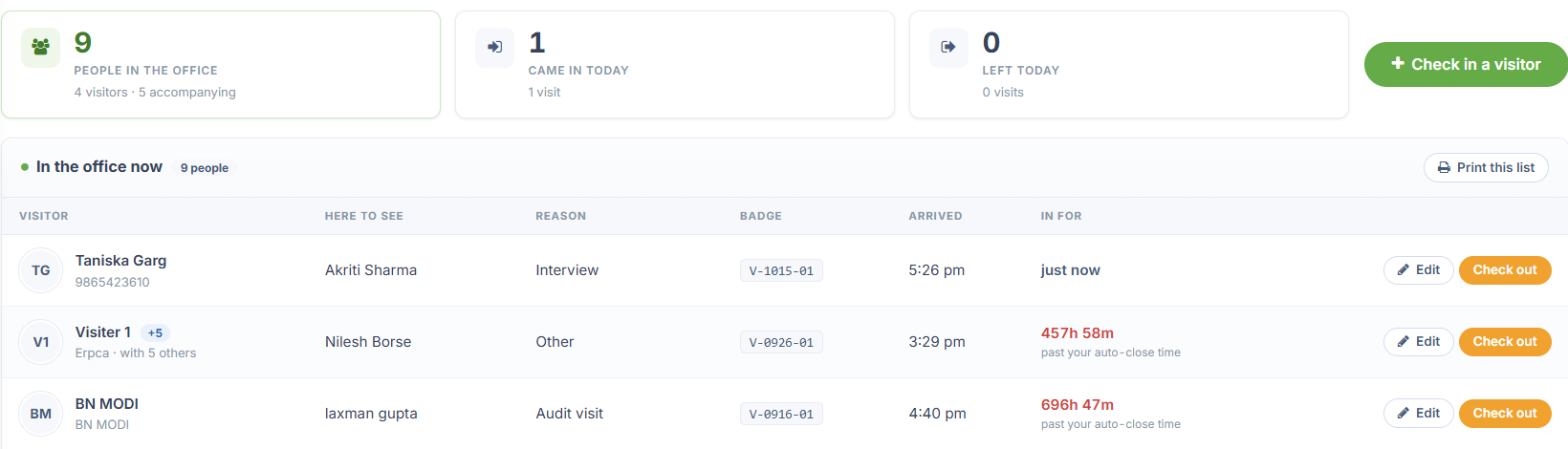
Where the check-out option is available, open the relevant visitor record and use the displayed check-out action to record the visitor's departure.
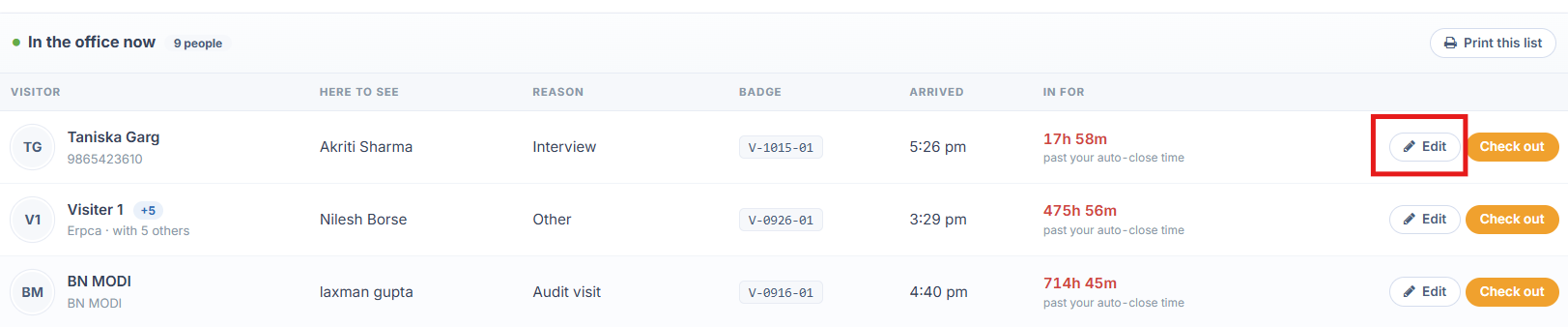
Correction and Cancel Visit-we can also modify the changes and cancel the visit according to the requirement.
1-we need to click on the edit option to modify the changes or cancel the visit.
Correction
Locate the relevant visitor record.
Click the EDIT option to update or correct the visitor details.
Make the necessary changes and save the record.
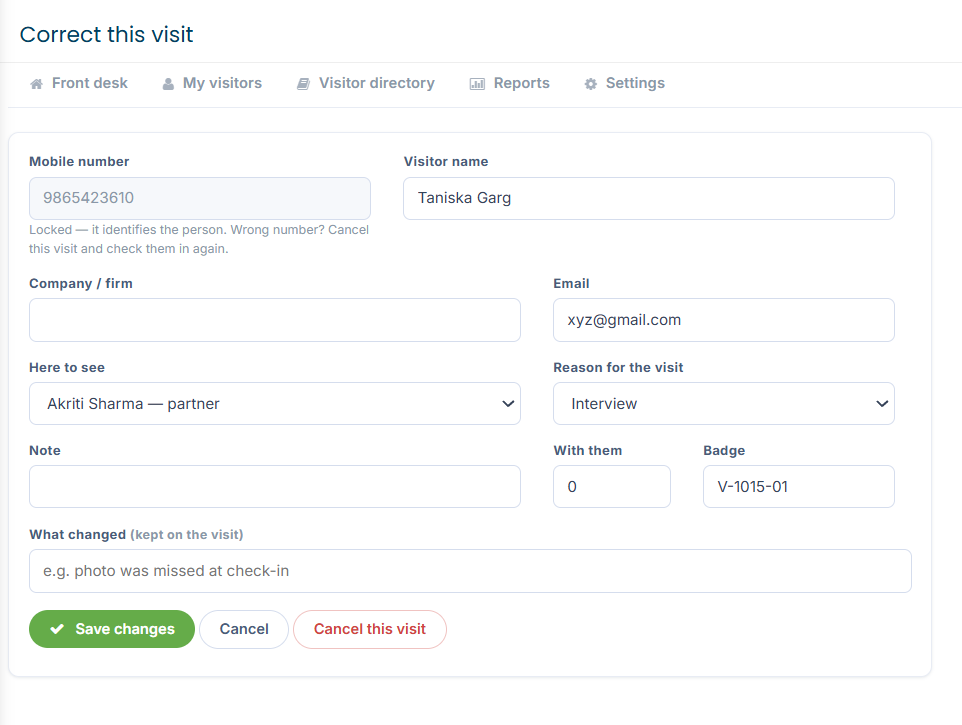
Cancel Visit
Locate the visitor record for which the visit needs to be cancelled.
Click the EDIT option.
At the bottom we have a cancel visit option just click it to cancel this visit.
Follow the on-screen instructions to confirm the cancellation, if prompted.
Updated 17 Oct 2026 · View on support.erpca.com