REPORTS
ReportsThe Reports section in ERPCA Visitor Desk helps users monitor visitor activity, reception workload, host response times, client footfall, visit purposes, and visitors who ha…
Reports
The Reports section in ERPCA Visitor Desk helps users monitor visitor activity, reception workload, host response times, client footfall, visit purposes, and visitors who have not checked out.
To access the reports, log in to ERPCA, open the Visitor Desk module, and click on the Reports tab.
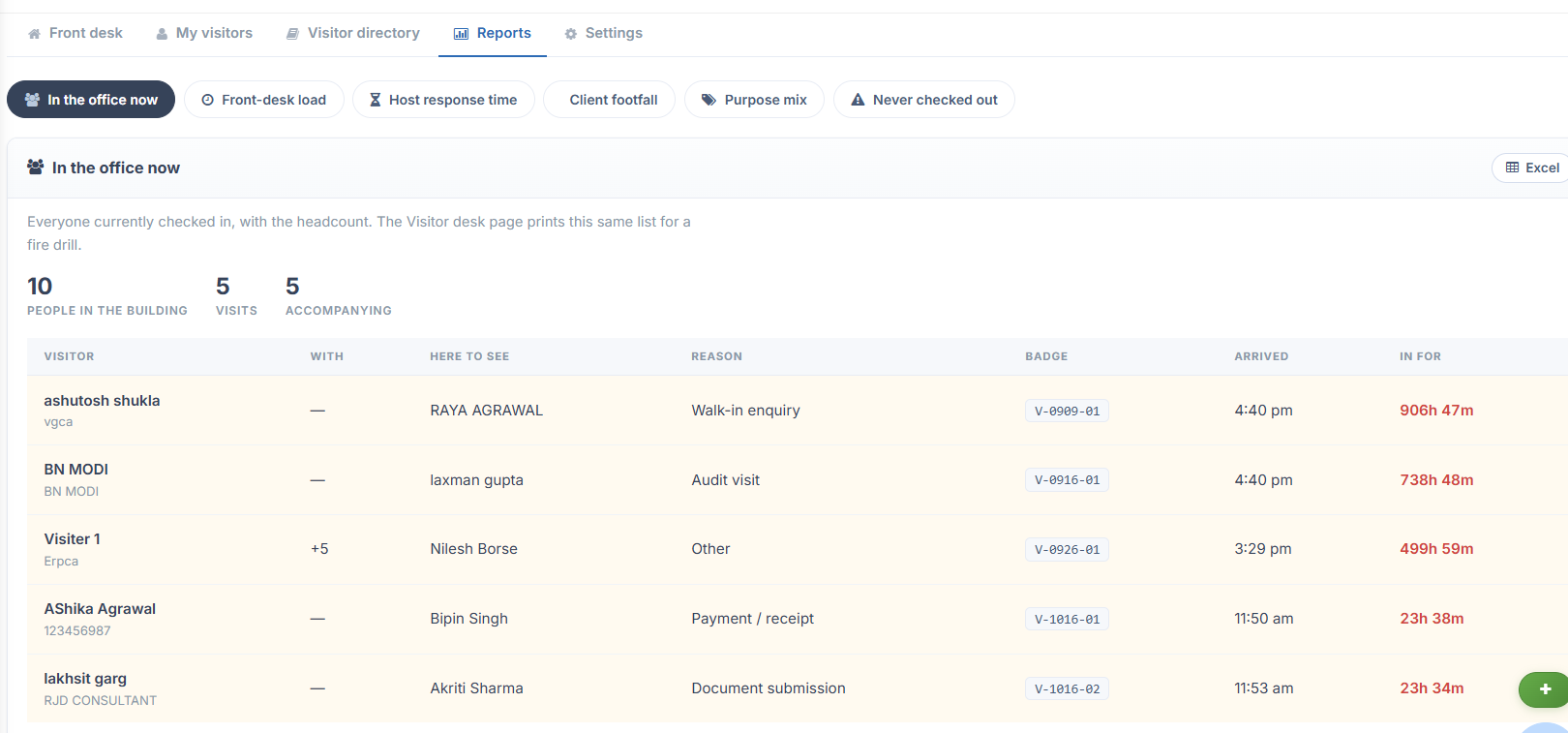
1 In the Office Now
Displays all visitors who are currently checked in, along with the total headcount in the building. This list can also be printed from the Visitor Desk page for emergency or fire-drill purposes.
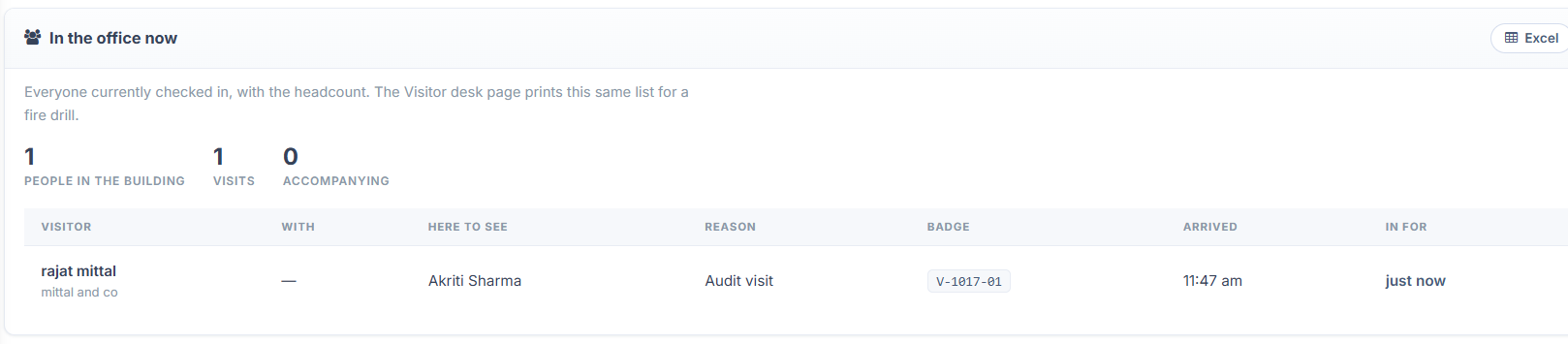
Information displayed:
Total people in the building
Number of visits and accompanying persons
Visitor name and company
Person being visited and reason for visit
Visitor badge number
Arrival time and duration of stay
Excel Export: Click the Excel option to export the available report data.
2 Front-Desk Load
This report shows when visitors arrive, broken down by hour of the day and day of the week. It helps management plan reception staffing according to visitor rush periods.
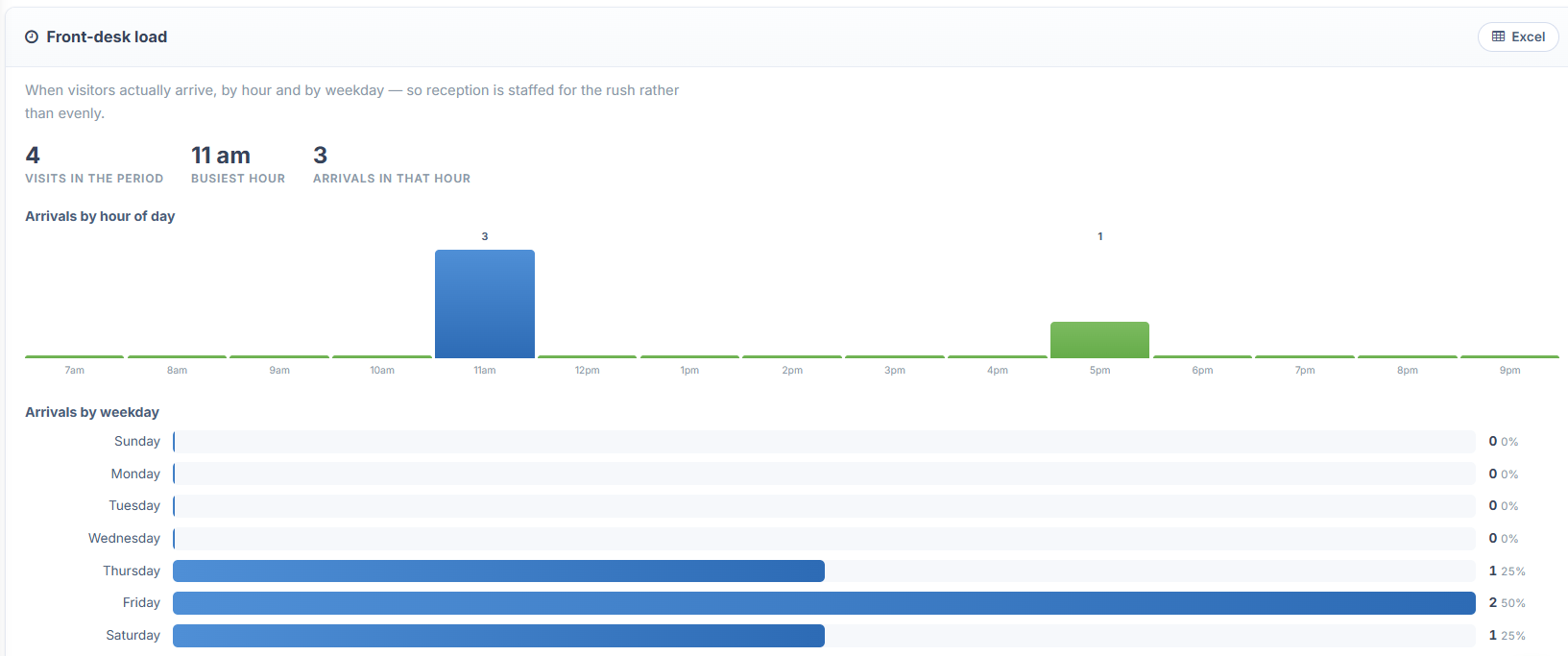
Information displayed:
Total visits during the selected period
Busiest hour of the day
Number of arrivals during the busiest hour
Arrivals by hour of the day
Example: If 11:00 AM is the busiest hour, reception staffing can be planned accordingly.
Excel Export: Click Excel to download the report.
3 Host Response Time
This report measures the time between visitor check-in and the host opening the visitor alert. It helps assess how quickly hosts respond to visitor notifications.
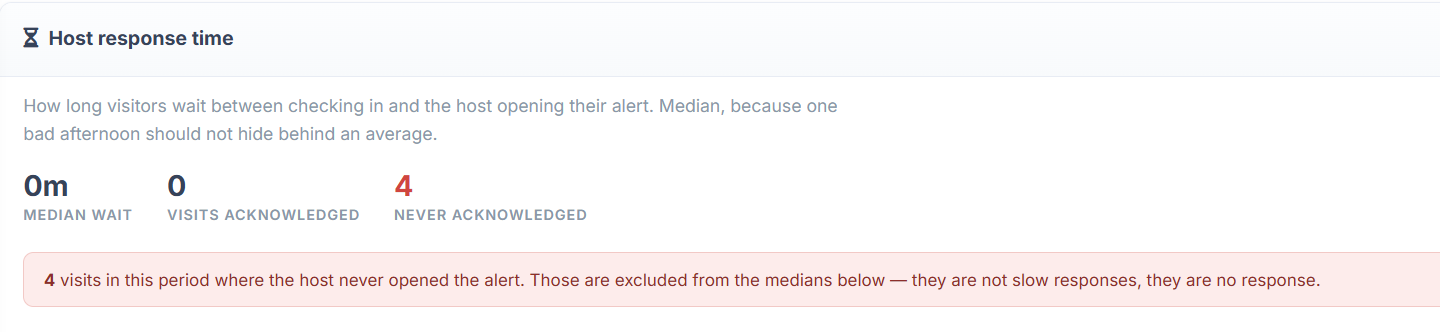
Information displayed:
Median waiting time
Number of visits acknowledged by the host
Number of visits never acknowledged
Visits that were never acknowledged are excluded from the median response-time calculation because they do not have a recorded response.
Excel Export: Click Excel to export the report.
4 Client Footfall
This report shows which companies or firms visit the office, how frequently they visit, and when they last visited.
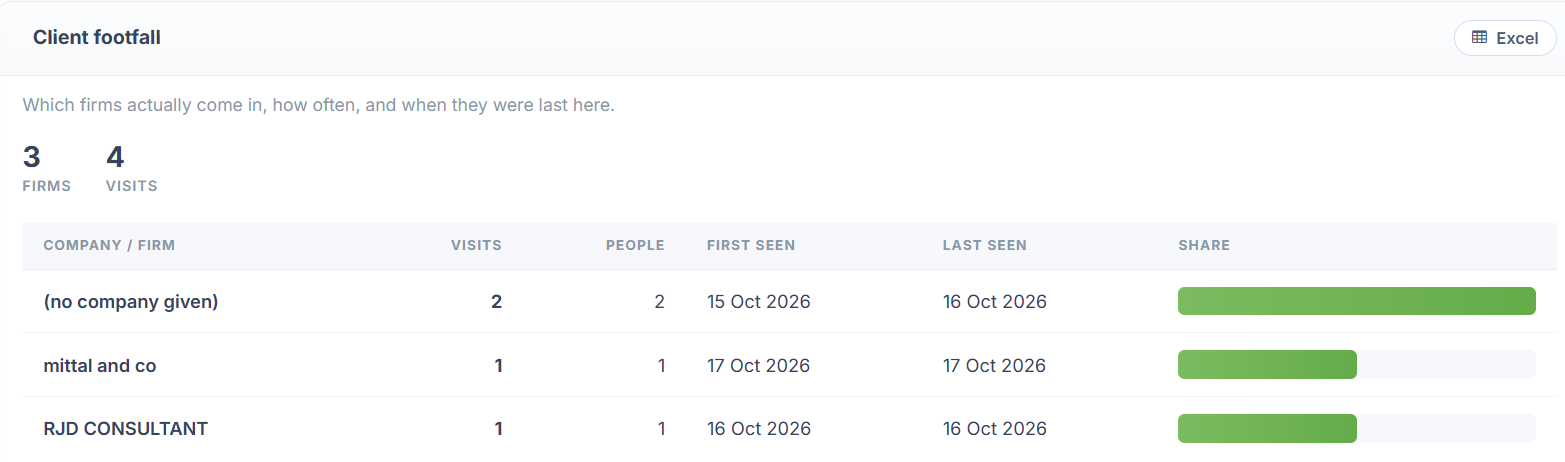
Information displayed:
Total firms and visits
Company or firm name
Number of visits and people
First visit date
Last visit date
Share of total visits, where displayed
Important: Records are grouped by the company name entered during visitor registration. Consistent company naming helps maintain accurate reporting.
Excel Export: Click Excel to download the client footfall report.
5 Purpose Mix
This report categorizes visits according to their recorded purpose. It helps management understand the main reasons people visit the office.
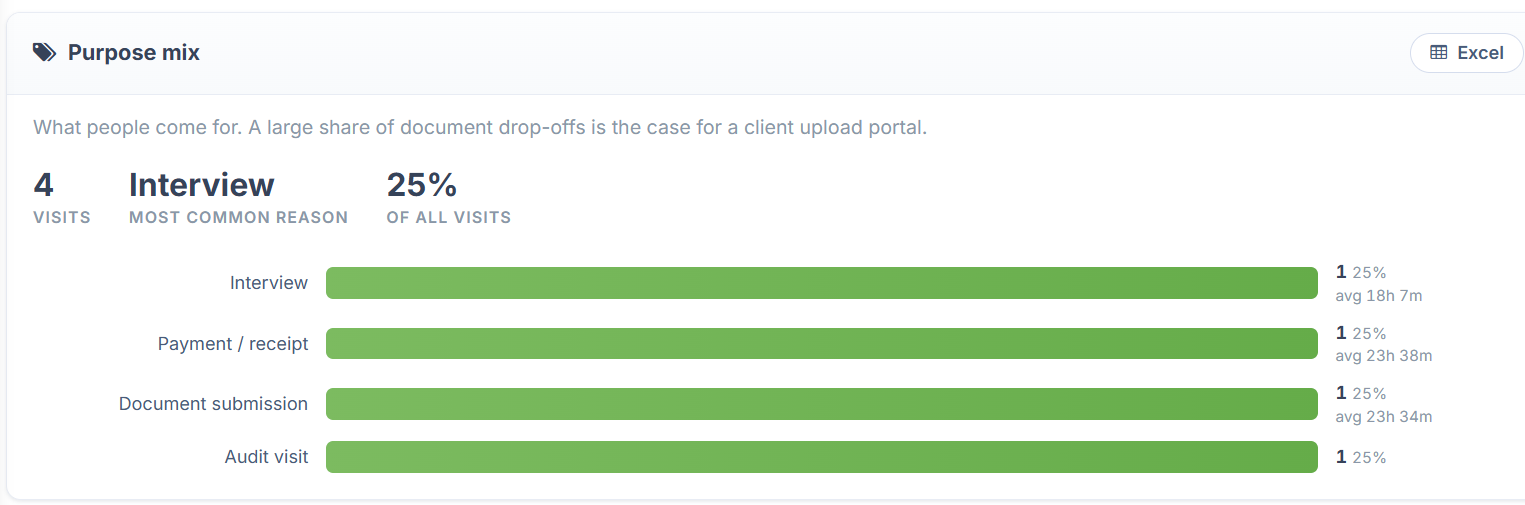
Information displayed:
Total visits during the selected period
Most common reason for visiting
Percentage of visits for each purpose
Average visit duration for each purpose, where available
Examples of visit purposes:
Interview
Payment / receipt
Document submission
This information can help identify recurring visitor requirements and opportunities to improve office processes.
Excel Export: Click Excel to export the purpose-wise report.
6 Never Checked Out
This report identifies visits that remain open beyond the configured auto-close threshold. It helps maintain accurate visitor records and building occupancy counts.
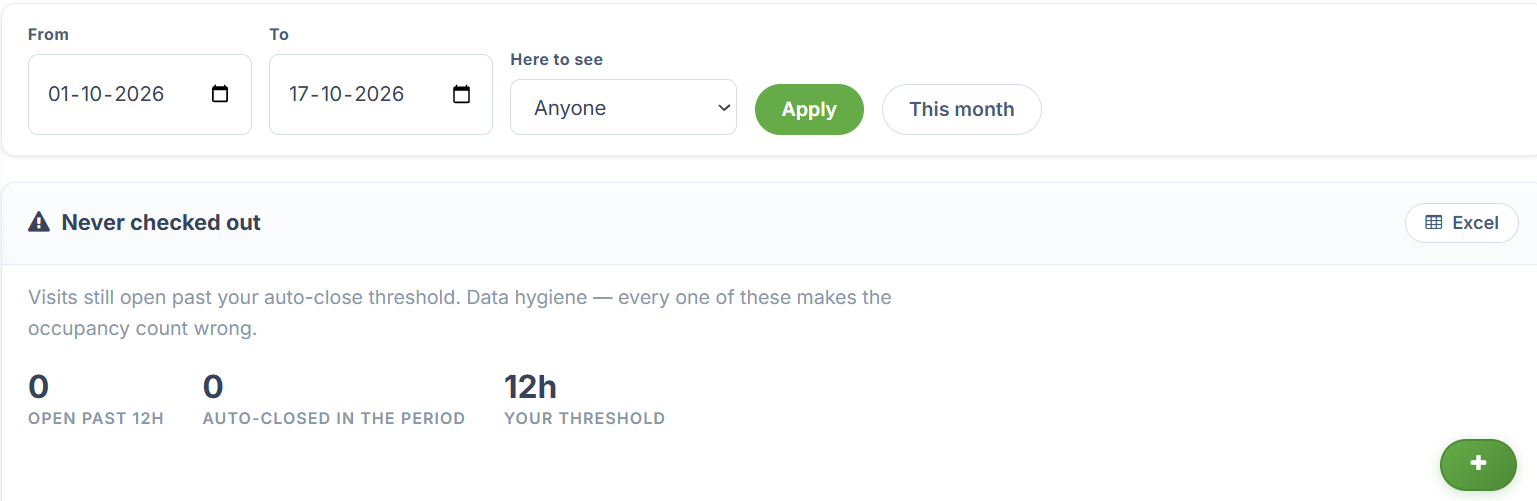
Information displayed:
Number of visits open beyond 12 hours, as shown in the current configuration
Number of visits automatically closed during the selected period
Configured auto-close threshold
Purpose: To identify missing check-outs and maintain accurate records of visitors who are still marked as being inside the office.
Excel Export: Click Excel to download the report.
General instructions for Reports
Open the Reports tab in Visitor Desk.
Select the required report from the available options.
Review the summary figures and detailed records displayed.
Click Excel to export the corresponding report when required.
Use the report information for reception planning, visitor tracking, and administrative review.
Note: The report values depend on the selected reporting period and the visitor information recorded in ERPCA. The figures shown in the screenshots are examples and may change as new visits are registered.
Updated 17 Oct 2026 · View on support.erpca.com